
WordPress can be tricky. When you need to add a plugin, it can feel overwhelming if you’ve never done it before. If you have ever googled, “WordPress how to add plugin” you are not alone. Heck, maybe that’s how you ended up here.
I hear this all the time from small business owners, especially the ones who say they’re non-techy. Plugins feel technical. Permanent. Like one wrong click could send everything crashing down.
The truth is, adding a plugin is one of the most normal things you do in WordPress. You just want to take one small step first.
Back Up Your Website First
Before we add anything new to your website, please do this one thing.
Make a backup.
Most of the time, nothing goes wrong. But having a backup means you can relax and learn without fear.
If you are not sure how to do that yet, I wrote a simple walkthrough here:
How to Update a WordPress Site Without Breaking It
Once that is done, come right back.
A Quick Plugin Story (Because This Happens)
I want to share a quick story, because it is a good reminder that plugins are not magic and that is okay.
I recently migrated a website for a client. As part of the migration, the site came with a free “premier” plugin. It sounded fancy. It was supposed to do exactly what we needed.
It did not.
It did not work properly. It did not do what it promised. And no amount of adjusting settings made it better.
So I did what I often do. I removed it, went looking for another option, and found a different plugin that I absolutely love. It works beautifully and does the job far better than the “free premium” one ever did.
That is just part of working with WordPress. Sometimes you try a plugin, decide it is not the right fit, and switch to a better one. That is normal and healthy, not a failure.
What Is a WordPress Plugin?
A plugin is simply an add-on that gives your website new abilities.
Plugins can help you do things like:
You do not need to understand how plugins are built. You just need to know how to add one and turn it on.
WordPress: How to Add a Plugin Step by Step
Let’s walk through this together.
Step 1: Log In to Your WordPress Dashboard
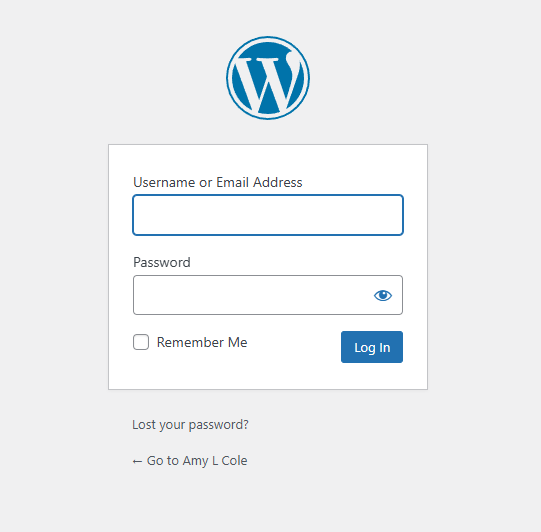
Go to your website and add /wp-admin to the end of your domain.
For example: yourwebsite.com/wp-admin
Log in with your WordPress username and password.
Step 2: Go to Plugins and Click Add New
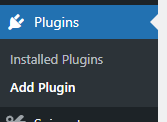
In the left-hand menu, click Plugins, then Add New.
This is WordPress’s built-in plugin library. Think of it like an app store for your website.
Step 3: Search for the Plugin You Want
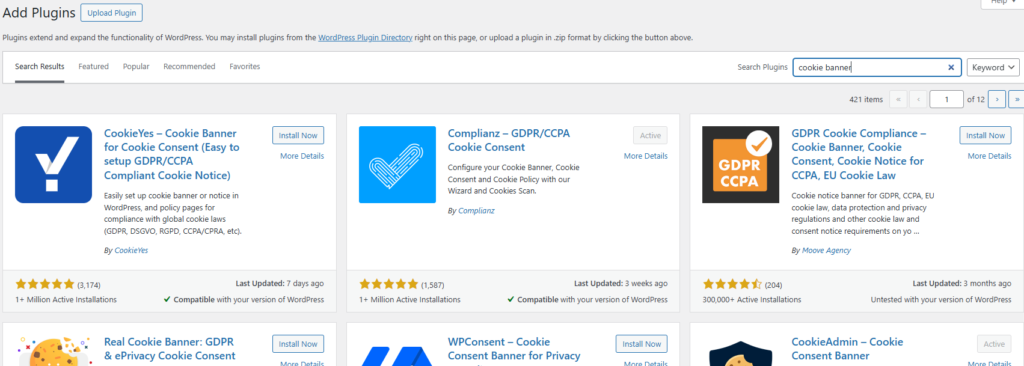
Use the search box in the top right to type the name of the plugin you are looking for.
You will see a list of results appear.
Step 4: Click Install Now
When you find the plugin you want, click Install Now.
WordPress will take a few seconds to install it.
When it finishes, the button will change to Activate.

Step 5: Click Activate
This is an important step.
Installing a plugin puts it on your site. Activating it turns it on.
Once you click Activate, the plugin is officially added to your WordPress site.
What to Do After You Activate a Plugin
Different plugins behave differently.
- Some add a new menu item on the left.
- Some add a settings page.
- Some work quietly in the background.
If you do not see anything obvious right away, that is completely normal.
I recommend activating one plugin at a time, then opening your website in a new tab and making sure everything still looks good. I also recommend removing plugins you no longer need or use, as outdated plugins can be a way for hackers to get into your site. If you need help with updating your site and keeping your plugins and theme files updated, read my post here: How to Update a WordPress Site.
A Little Reassurance Before You Go
Adding plugins is part of owning a WordPress website. It is not advanced, risky, or reserved for developers. Just don’t go crazy with it. Too many plugins can cause problems, and sometimes they don’t play nicely with each other.
When you back up your site first and go step by step, you are learning how your website works and building confidence along the way.
And if a plugin doesn’t work the way you hoped, you can remove it and try another one. Just like I did.
That is WordPress.