
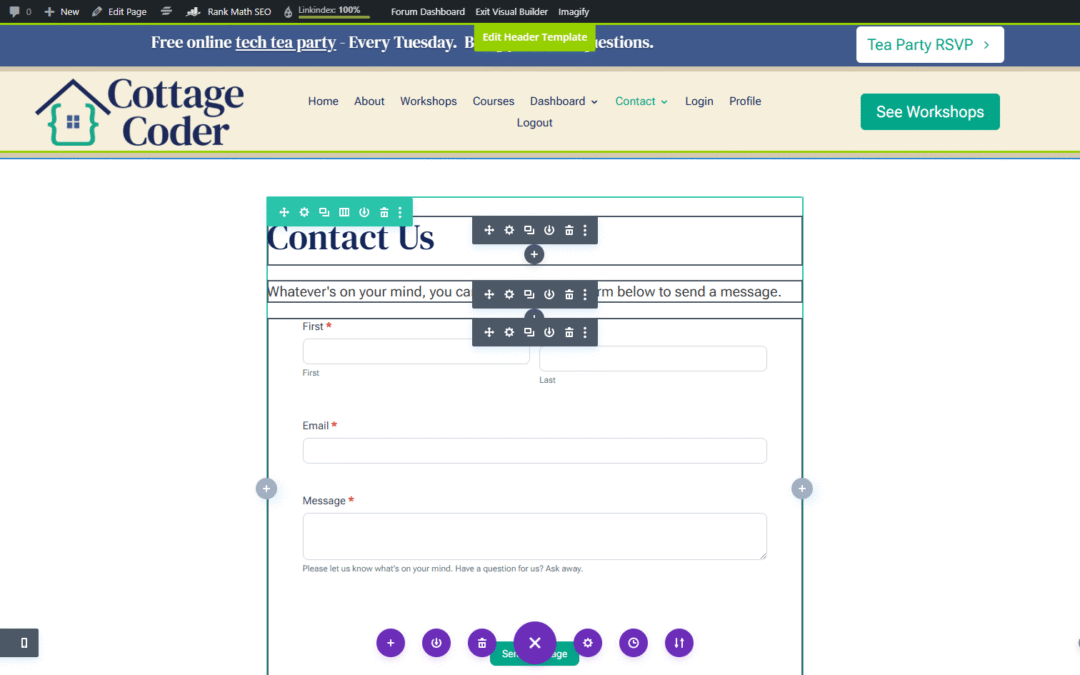
One of the most common problems I see on WordPress sites is a Divi contact form not sending email.
And here’s the truth:
It’s often not an email problem at all… It’s a form problem.
Something I tell people all the time is this:
Don’t use the built-in Divi form module for important contact forms.
As much as I love Divi for layout and design, the contact form is one place where it really falls short.
The Big Problem with the Divi Contact Form Not Sending Email
The Divi contact form does not save form entries.
That’s a huge issue.
If your email notification fails for any reason — hosting hiccup, spam filter, server issue — that message is gone forever. There’s no inbox inside WordPress to check. No record of who reached out. No way to recover the lead.
When people come to me saying, “Divi contact form not sending email,” this is usually what’s happening behind the scenes.
And honestly?
That’s not a good way to do business.
You should always be able to go back and see who filled out your form and what they said. No exceptions.
My Recommendation: Use a Form Plugin Instead
Because of this, I always recommend using a dedicated form plugin instead of the Divi form module.
For years, I used Gravity Forms on almost every site I built. It’s solid, reliable, and feature-rich.
But lately, I’ve been using Formidable Forms, and I’ve been genuinely impressed — especially with what you get in the free version.
Here’s why it works so well:
- You can create a contact form quickly
- Styling is straightforward
- Form entries are saved inside WordPress (even on the free plan)
That last point is the game-changer.
If an email notification fails, you can still log in and see every submission. No lost leads. No guessing.
How I Replace a Divi Contact Form (Step-by-Step)
This is my usual workflow when a Divi contact form is not sending an email:
- Back up your site first
Always. No exceptions. - Install the free Formidable Forms plugin
(If you need help, check out my post on how to add a plugin to WordPress.) - Use the default contact form
I usually delete the Subject field and Last Name field, but that part is optional. - Set up the email notification
Make sure it’s sending to the correct address. - Add a captcha
This helps cut down on spam issues that can interfere with email delivery. - Save the form and copy the shortcode
- Paste the shortcode into your page
I’ll usually drop it into a text module where the Divi form used to be. - Style the form to match Divi
I open the page in another tab, compare it to the original Divi form, and tweak spacing, fonts, and colors until it blends right in. - Delete the Divi form module
Save the page, exit the builder, and clear your cache. - Test everything
- Submit the form
- Confirm the thank-you message or thank-you page appears
- Check that the notification email arrives
- Verify the entry is saved in WordPress
Once that’s working, you’re done… and you no longer have to worry about your Divi contact form not sending an email again.
Final Thoughts About Divi Contact Form Not Sending Email
If your contact form matters (and it does) you need more than just an email notification. You need a record.
Using a proper form plugin gives you that safety net and saves you from losing leads due to email issues you may never even know about.
Divi is fantastic for design. I’ve been using it ever since it came out. And I’ll probably be using it for years to come.
Forms? Let a form plugin handle that part.